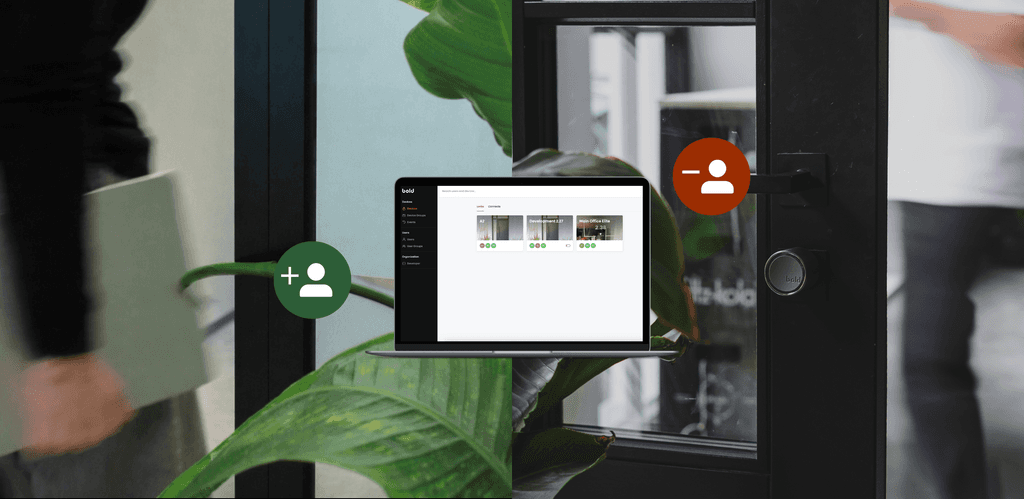
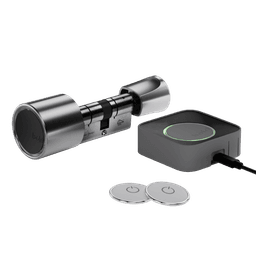

Growth brings new energy to your business, and new access needs. Teams expand. Responsibilities shift. Temporary staff, contractors and cleaners require entry. What started with one door quickly scales to ten.
That’s when structure becomes necessary.
Grouping in the web portal provides that structure and is exclusively available for Bold Pro. In this article, we explain how grouping works and show how it brings clarity and control to daily operations.
What is grouping?
Grouping allows you to organise both locks and users into logical clusters inside the web portal. There are two types of groups: device groups and user groups.
Device groups are collections of Bold Pro locks organised by location or function. You might group together all public-facing entrances, separate staff-only areas, or define certain spaces as restricted. Whether those spaces are offices, kitchens, locker rooms, storage areas, or individual properties, grouping allows you to manage them as structured zones instead of separate doors. Making access easier to assign and adjust.

User groups are collections of people who share similar responsibilities. Instead of assigning permissions individually, you define access based on role. Managers might need full access across all areas, operational staff require entry to specific workspaces, and external or temporary workers may only need access during certain hours. By organising access this way, you can update permissions in seconds as teams grow or roles change.

Why use grouping?
Grouping structures how permissions are organised and maintained. Instead of managing access per person or per door, you define it once at group level. This saves time and keeps your setup clear as your organisation grows.
In practice, this provides several clear advantages:
- Consistency across roles
People with the same responsibilities receive the same permissions. This reduces errors and prevents uneven access.
- Faster onboarding and role changes
When someone joins or changes position, you assign them to the correct group. Permissions are applied automatically.
- Simplified offboarding
Removing a user from a group immediately withdraws access from all connected areas. No need to collect physical keys or follow up to get them returned.
- Clearer oversight
Grouping makes it easier to review how access is structured and ensure it matches current responsibilities.
- Scalability
As locations, teams, or properties expand, the existing structure can be extended without rebuilding the setup.
Overall, this feature keeps your access setup flexible, updating instantly as roles shift, teams expand or spaces change.
Putting grouping into practice
To understand how grouping works in reality, let’s look at a typical setup.
A growing business replaces physical keys with Bold Pro and installs seven locks across the main entrance, staff entrance, shared areas and several restricted rooms.
Installation is straightforward. Once connected to the web portal, access can be structured and managed at scale.
Step 1: Organise your locks in the web portal
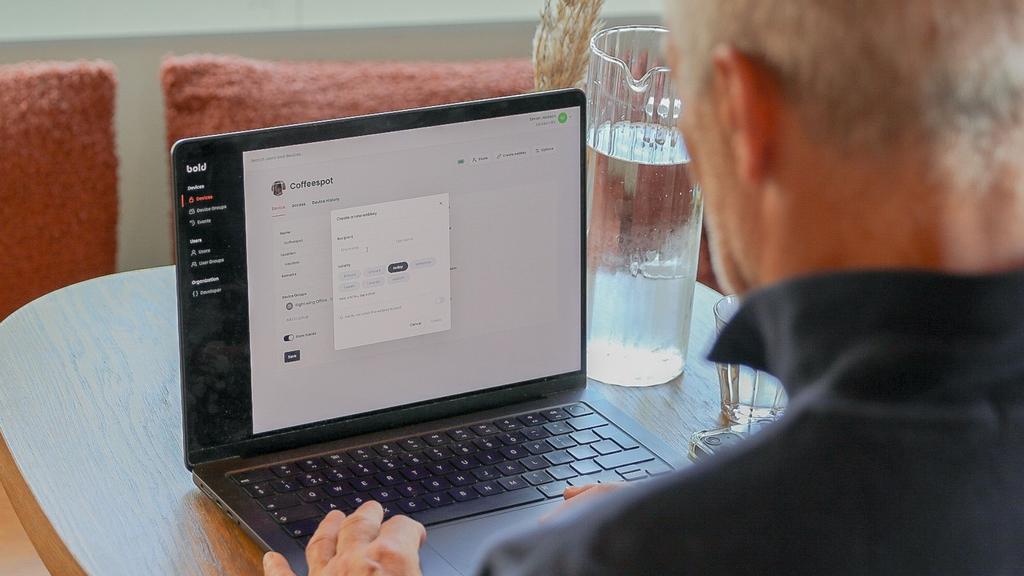
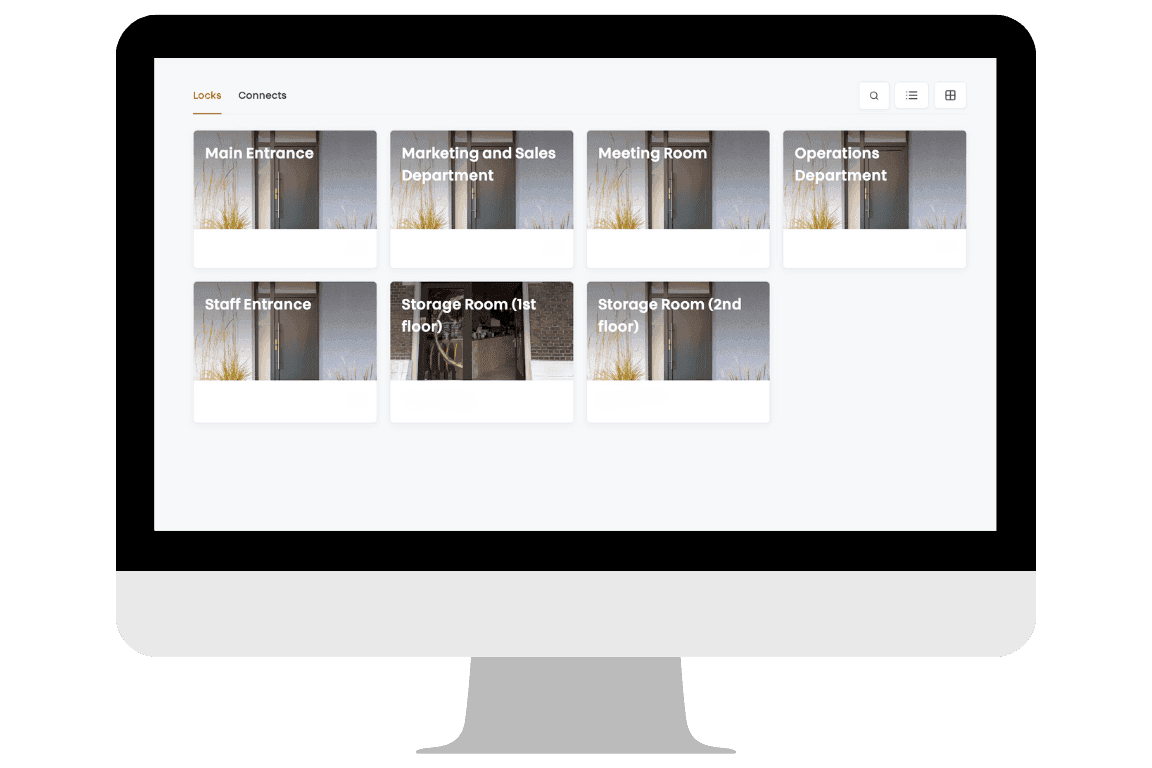
After installation, Bold Pro locks are automatically added to the web portal. At this stage, all seven devices appear individually in the overview.
The first practical step is simple but important: give each lock a clear and recognisable name. Not “Door 1” or “Lock A,” but names that reflect reality. For example, “Main Entrance,” “Staff Entrance,” “Meeting Room,” or “Storage.”
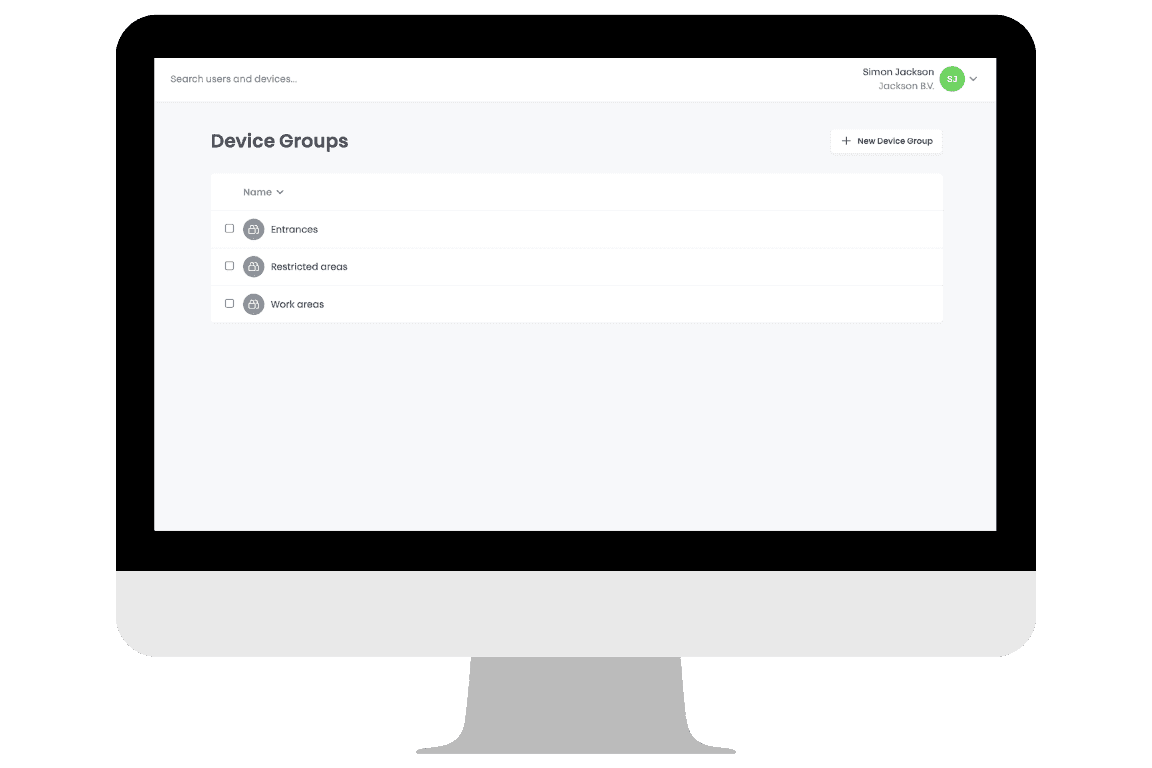
Step 2: Create Device Groups
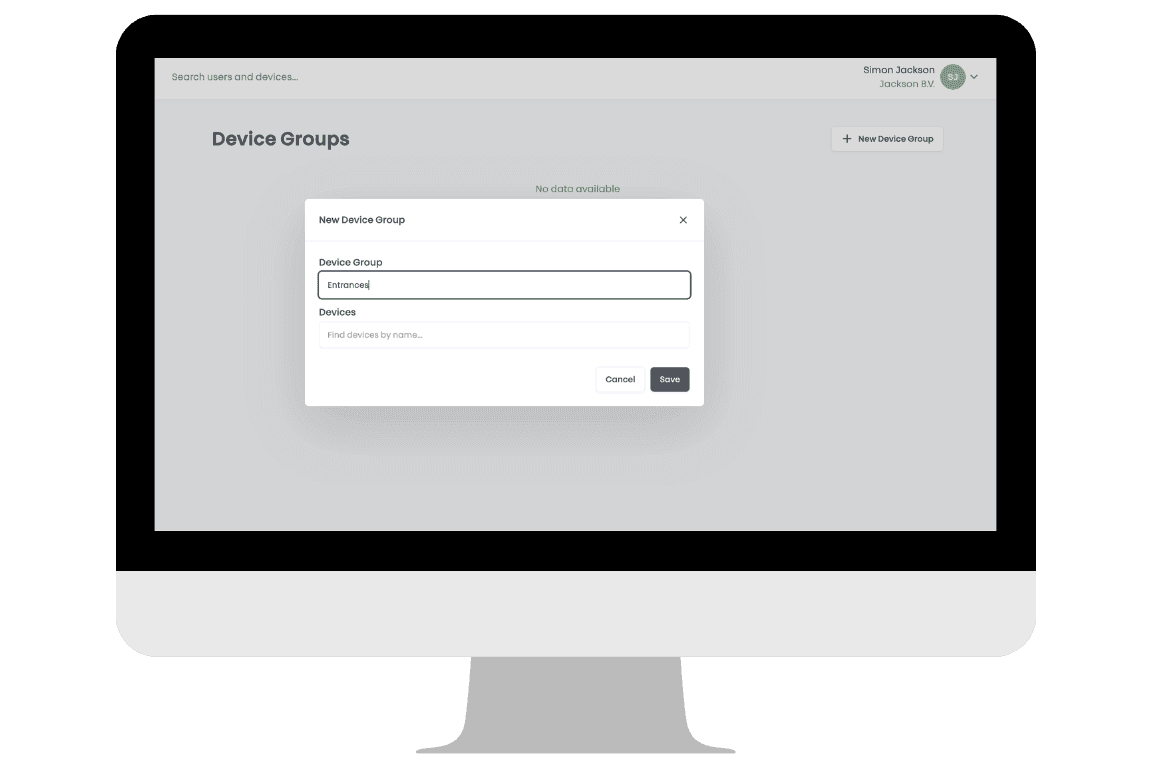
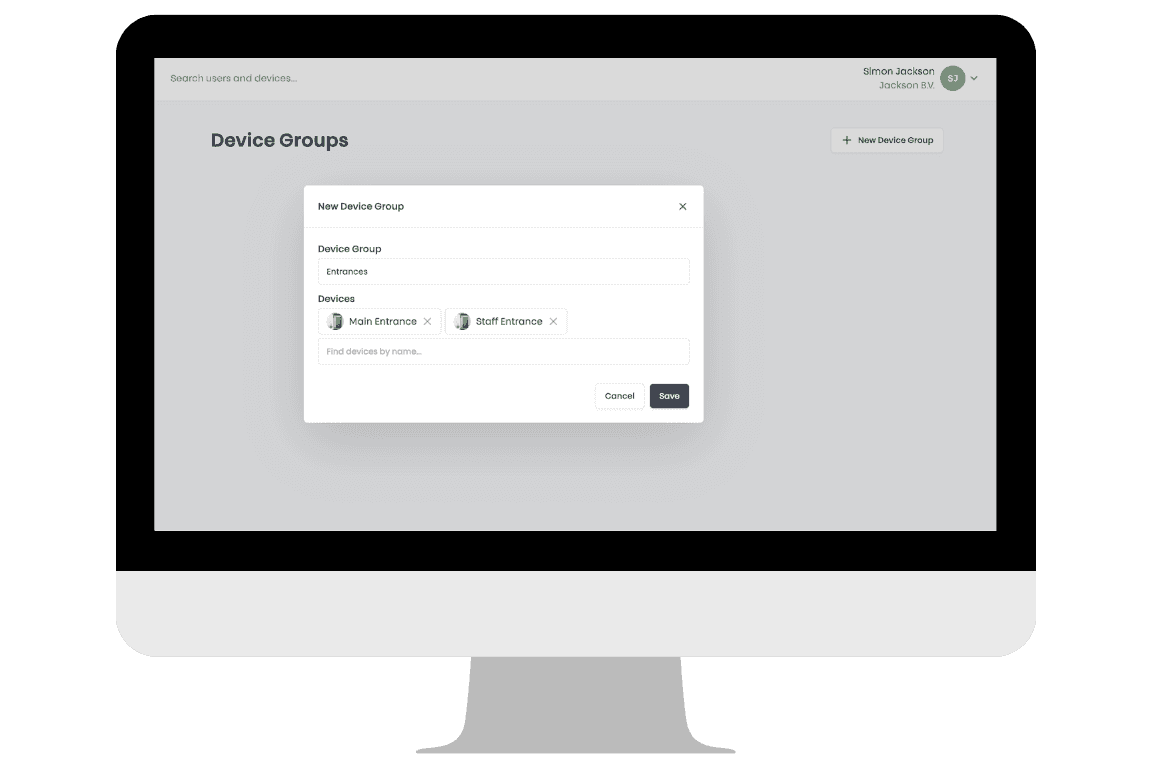
With all locks clearly named, the next step is to organise them into logical device groups that reflect how the office is structured.
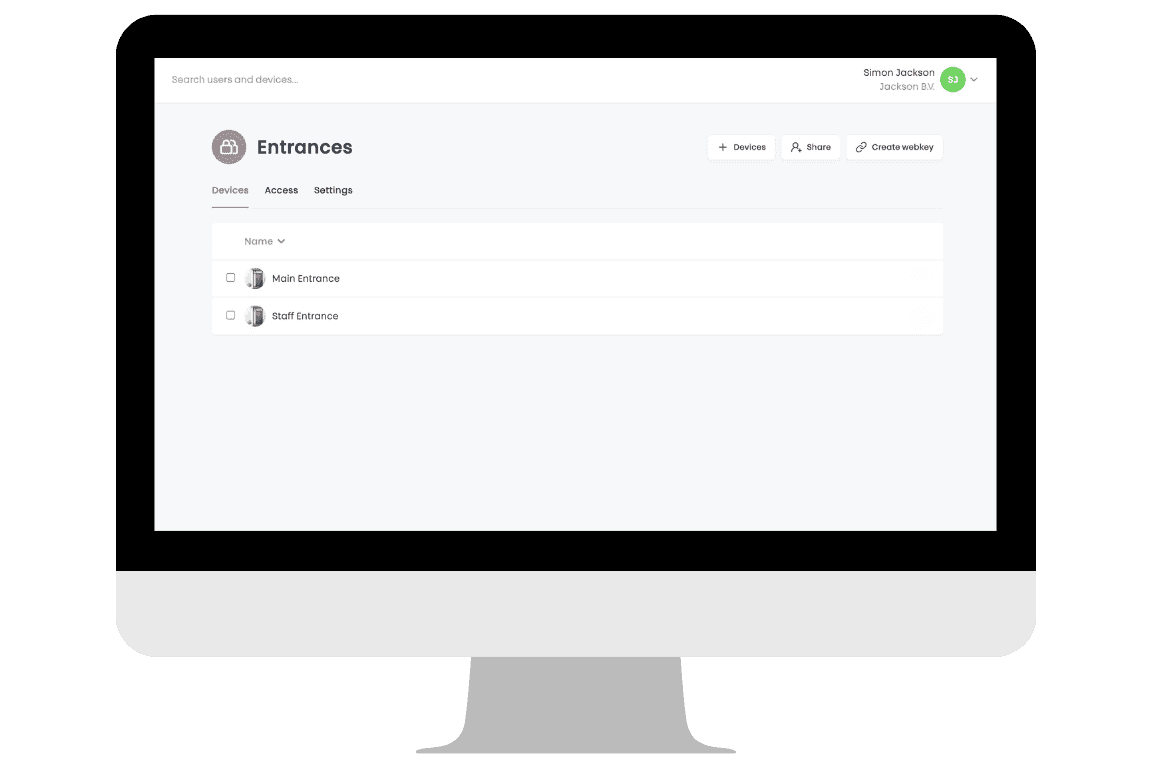
In this example, let’s create three clear categories: Entrances, Work areas, and Restricted areas. The two entry doors are grouped under Entrances. Departmental spaces and the meeting room fall under Work Areas. Storage rooms are grouped as Restricted Areas.
Instead of managing seven individual doors, the setup is now reduced to three functional zones.
Step 3: Create User Groups
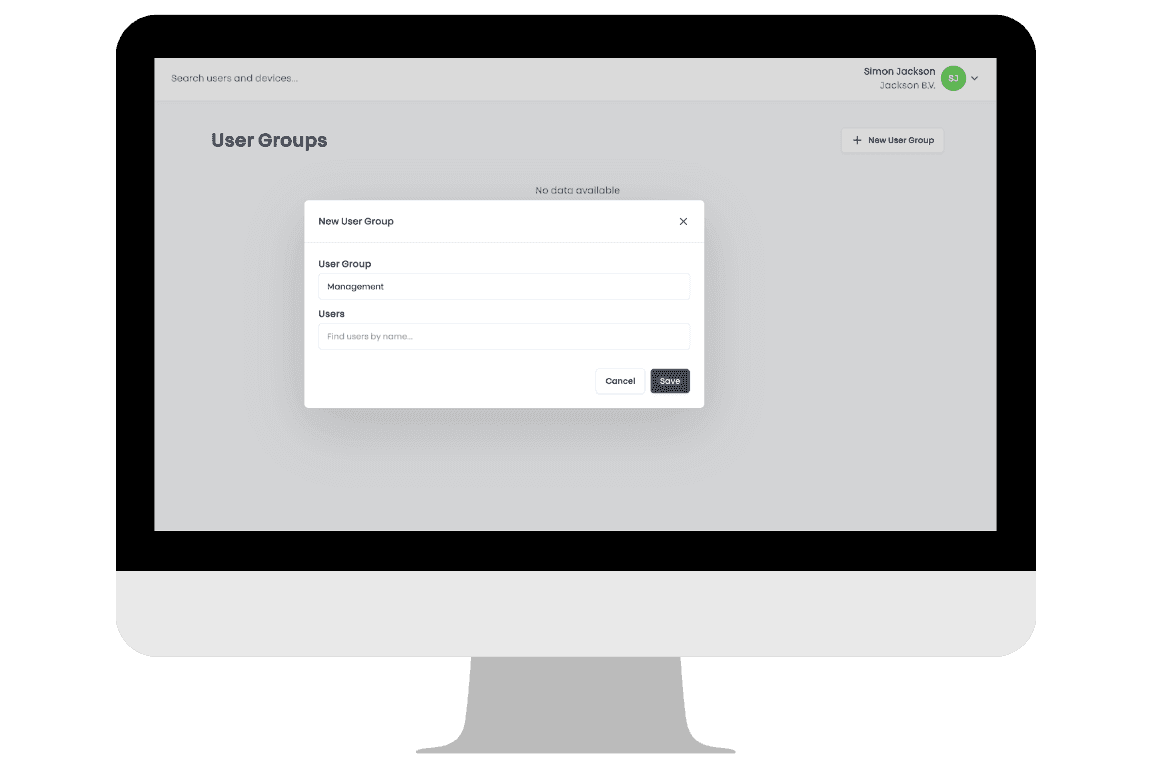
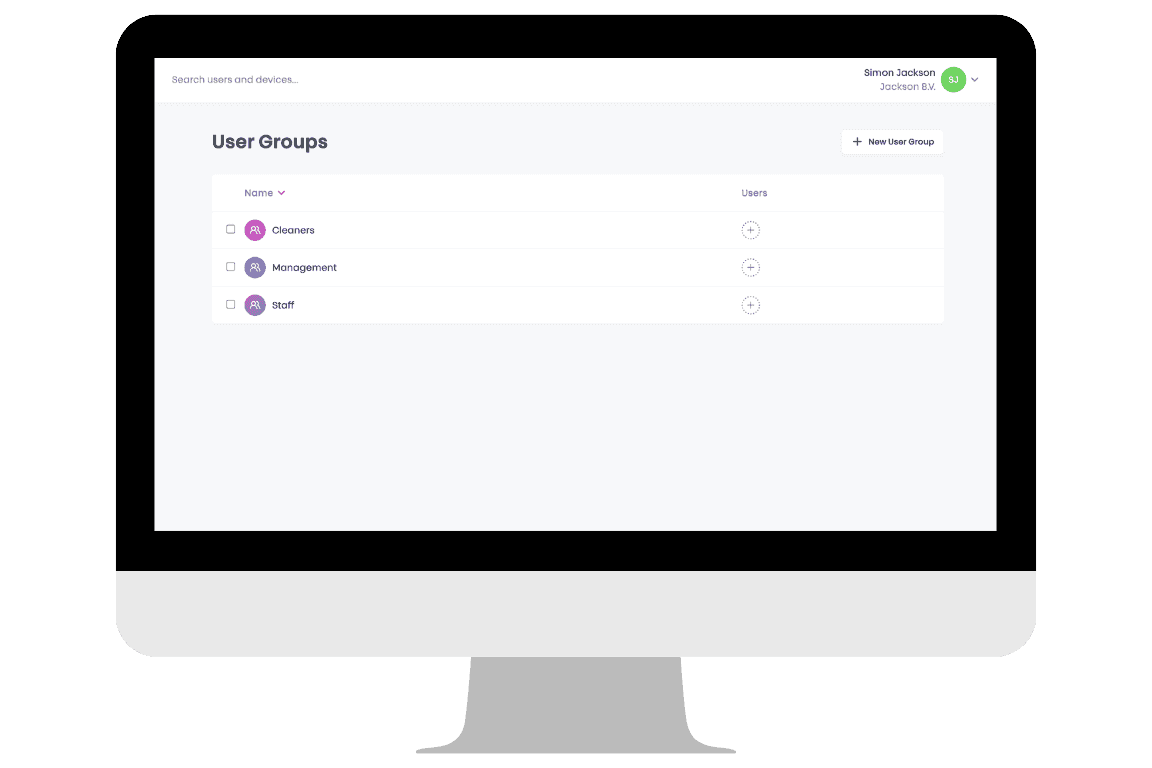
Now that the doors are organised, it’s time to define who will use them.
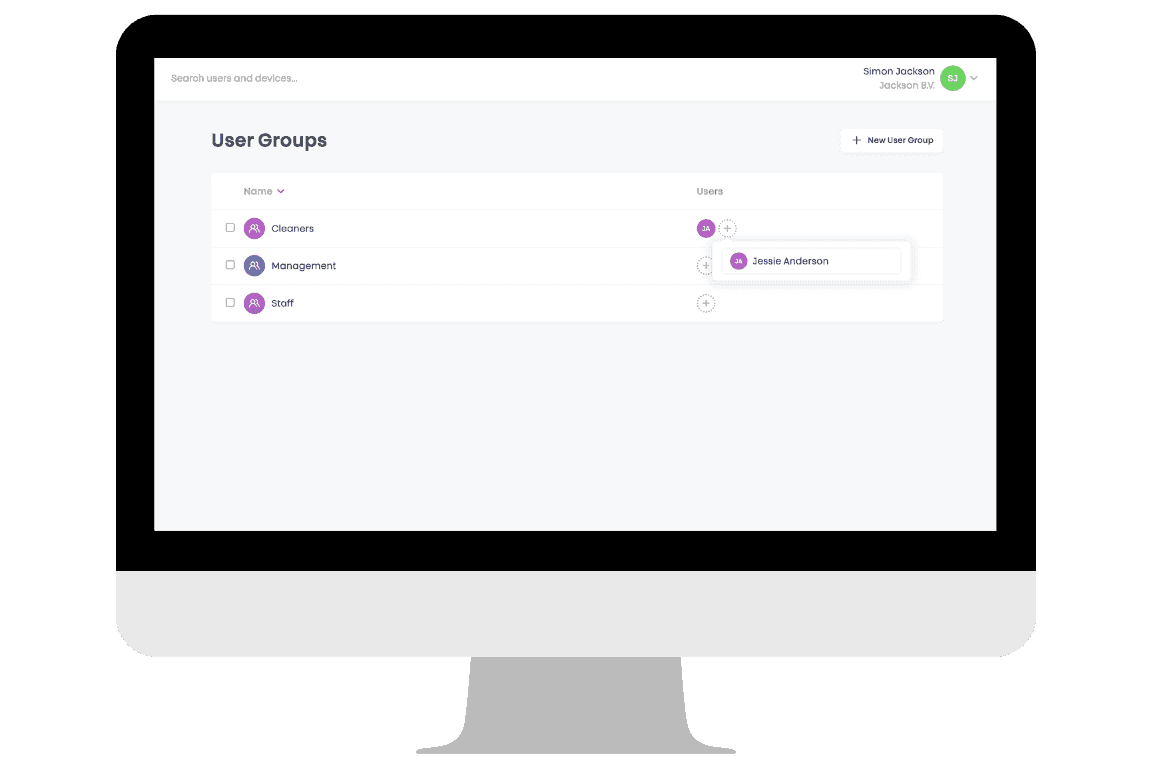
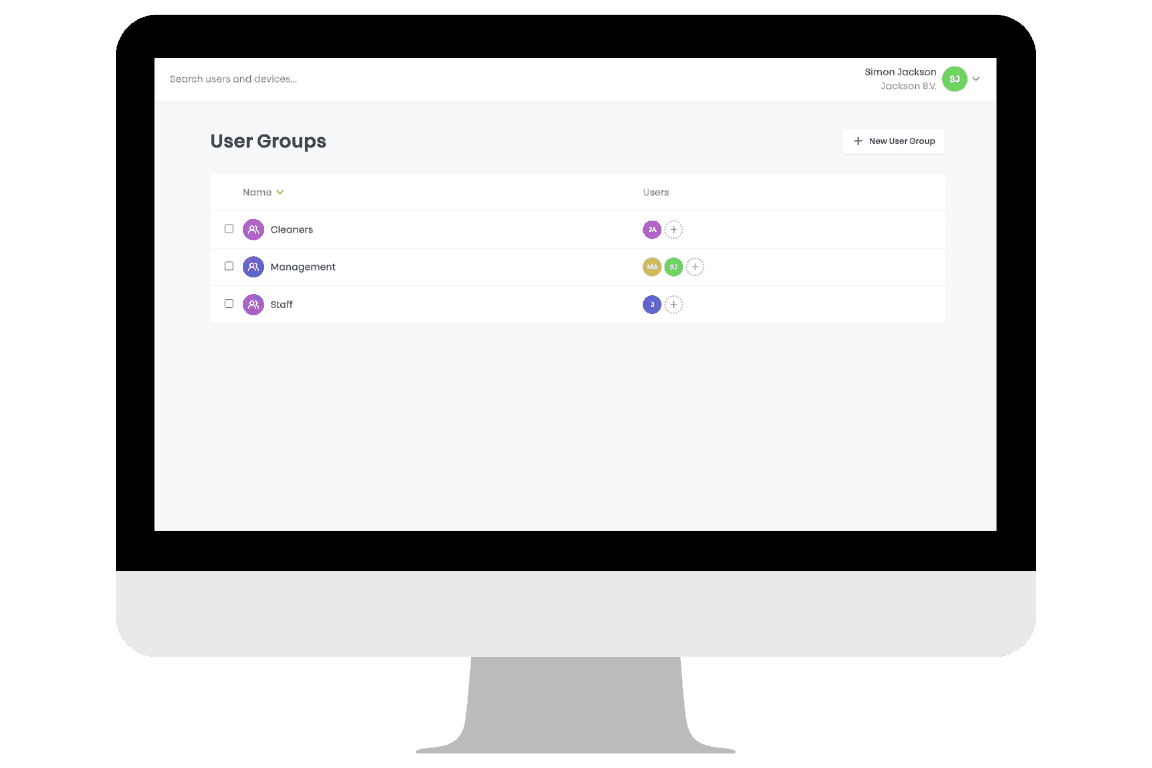
Let’s structure users into three groups: Management, Staff, and Cleaners. Management requires full access across the building at all times. Staff need access to entrances and daily work areas. Cleaners require access to all areas, but typically within defined timeframes.
Step 4: Add people to the appropriate groups
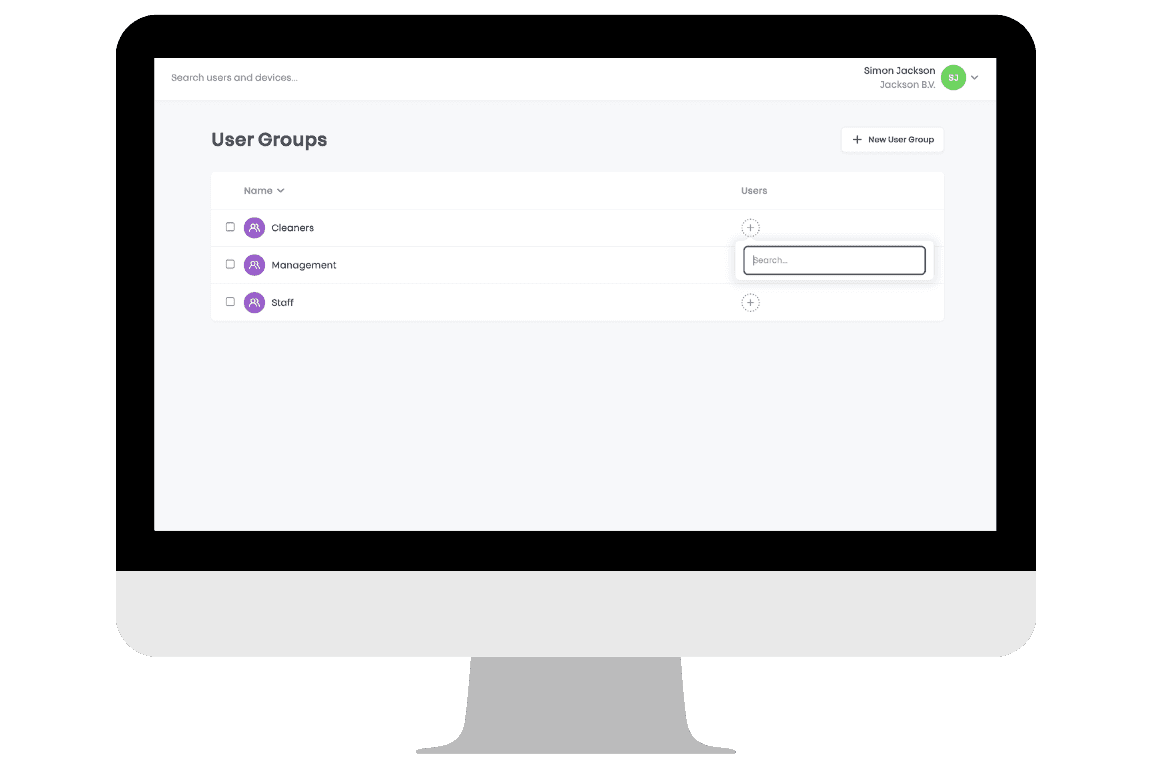
With the roles defined, users can be invited to the web portal and assigned to the correct group.
When adding a new employee, there’s no need to decide access door by door. You simply select the right group - Management, Staff or Cleaners - and permissions are applied automatically.
Step 5: Connect roles to spaces
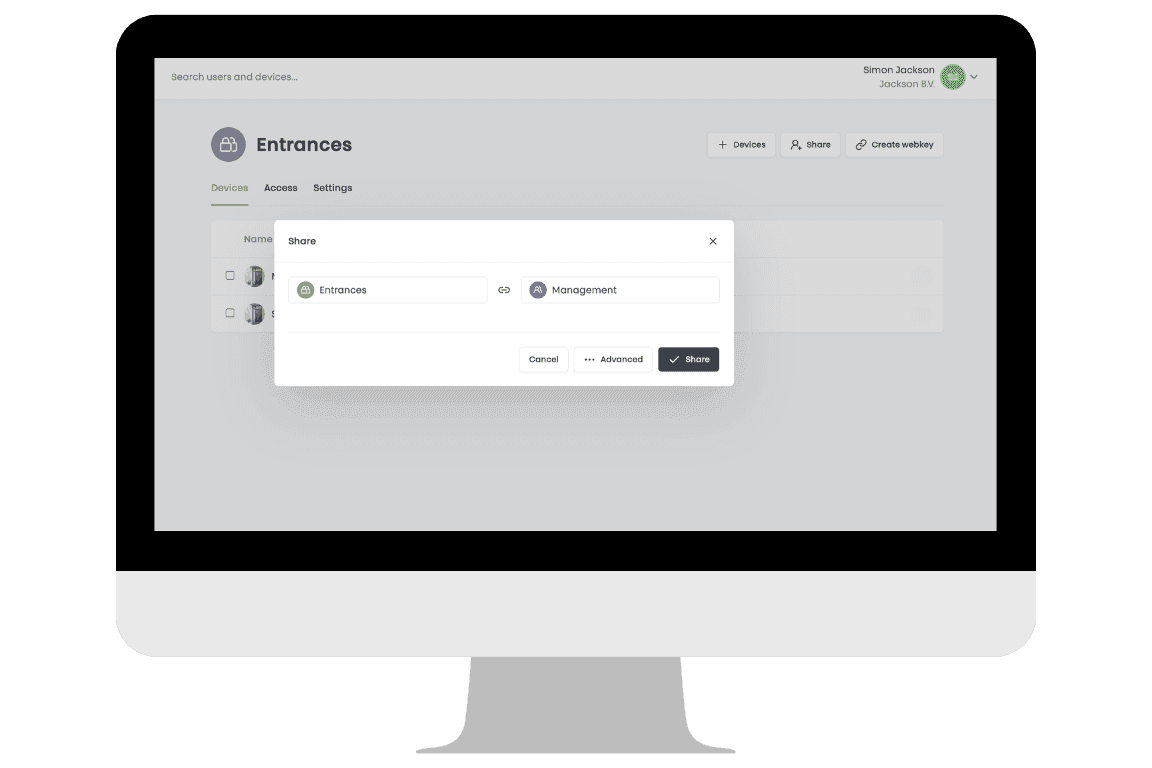
With locks organised and users assigned to clear roles, the final step is to define how those roles interact with the building.
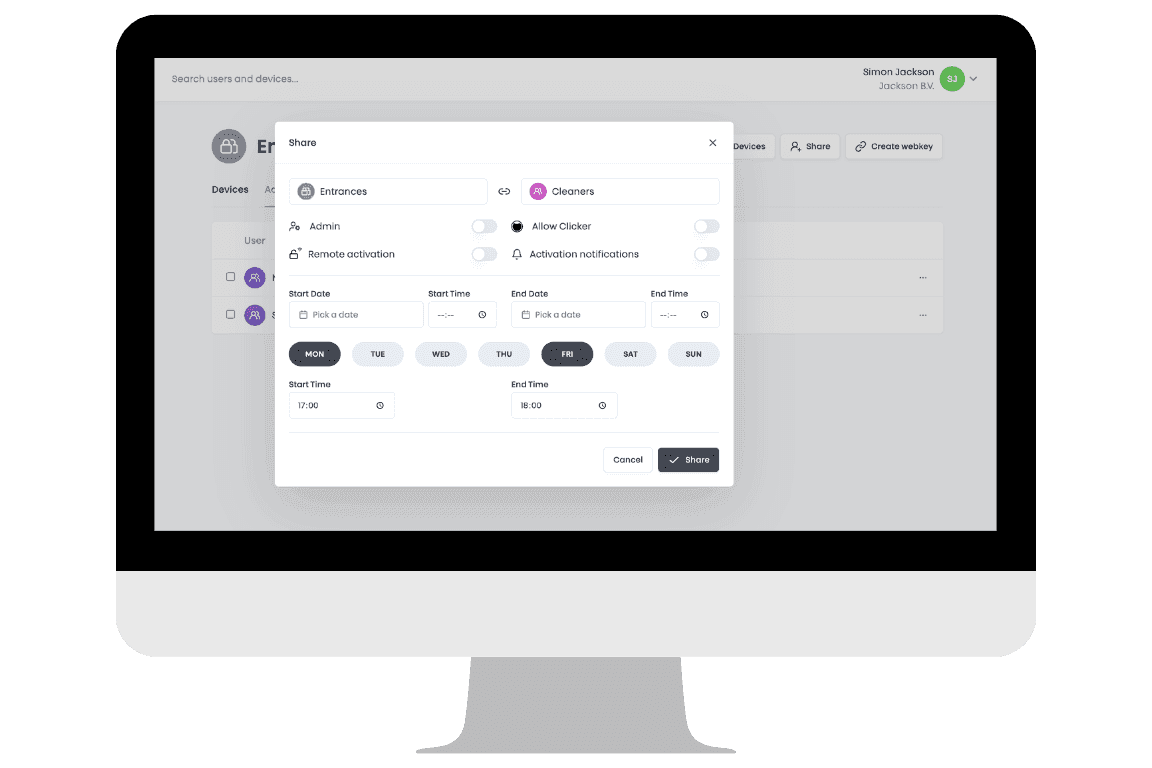
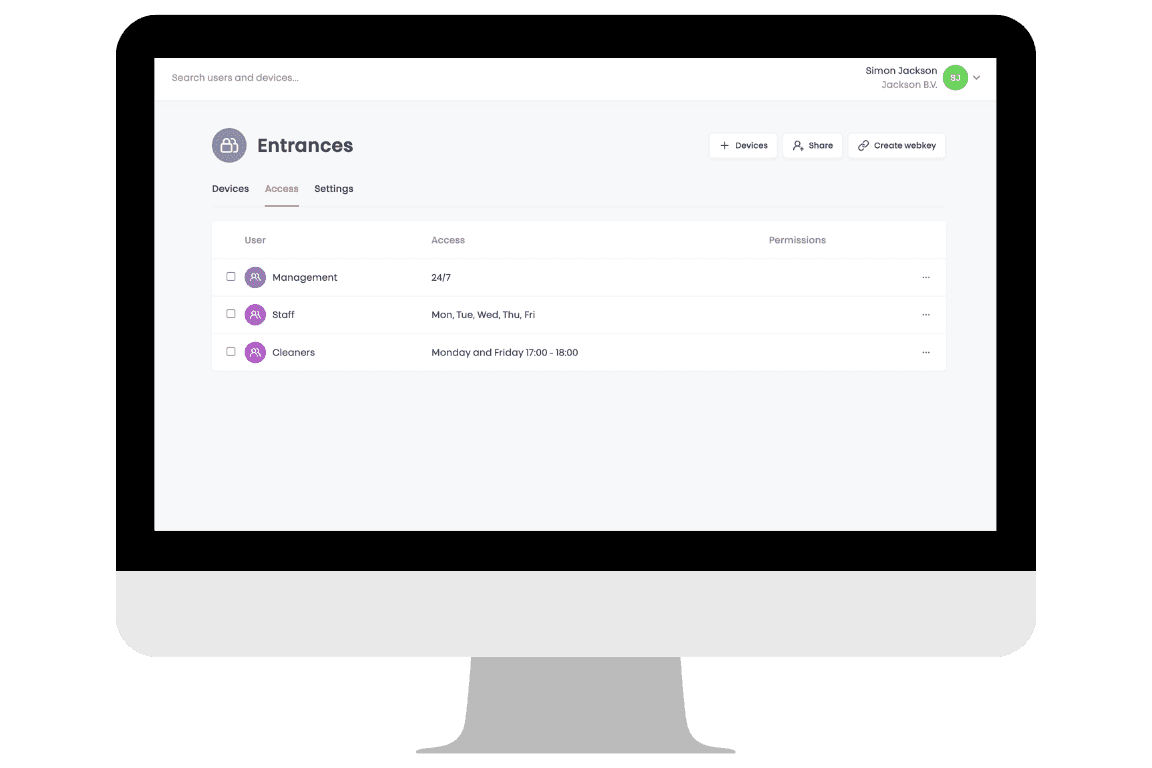
Management is linked to all areas. Staff is connected to Entrances and Work Areas. Cleaners are also linked to all areas, but with a defined schedule.
In this example, Cleaners are granted access only on Monday and Friday from 17:00 to 18:00. This allows them to complete their work without having unrestricted entry.
With Bold Pro, access is structured from the start. As people, roles, or spaces change, the system adapts without adding unnecessary work. It provides a clear and reliable foundation that supports how your organisation operates. We continuously develop and refine Bold Pro to make this structure even more intuitive and powerful. Stay connected through our newsletter to discover new features as soon as they are released.