Installing your Bold is simple and quick. Follow our step-by-step guide and enjoy secure, keyless access right away.
How to: Install your Bold
July 12, 2022
With your Bold in hand, you're just minutes away from a more convenient and secure way to lock and unlock your door.
Thanks to its sleek design and effortless setup, the Bold is a drill-less door lock that only requires a screwdriver and just 5 minutes to install. We've created this guide to help you get started, let’s walk through the smart lock installation together.
🛠️ Before you begin
Make sure the large inside knob (the one with the engine) is placed on the inside of your door. This is essential for the lock to function correctly.
Step-by-step installation
1. Download the Bold app Start by downloading the Bold app and creating your account. 2. Activate the battery Remove the small battery tab from the lock to power it up. 3. Secure the engine Tighten the engine using the small screw through the back of the inside knob.
4. Wake the lock Press and hold the button on the lock for 5 seconds. You’ll hear a beep and see a light, that means it’s ready to connect. 5. Pair in the app Open the Bold app, tap the plus (+) in the top-right corner, and follow the instructions to pair your lock.
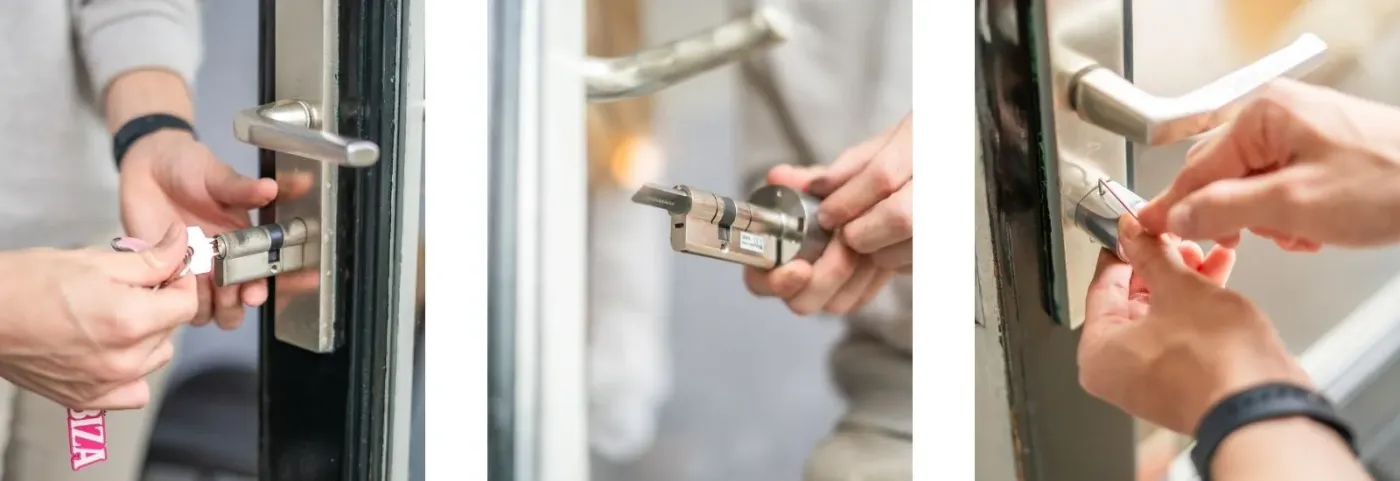
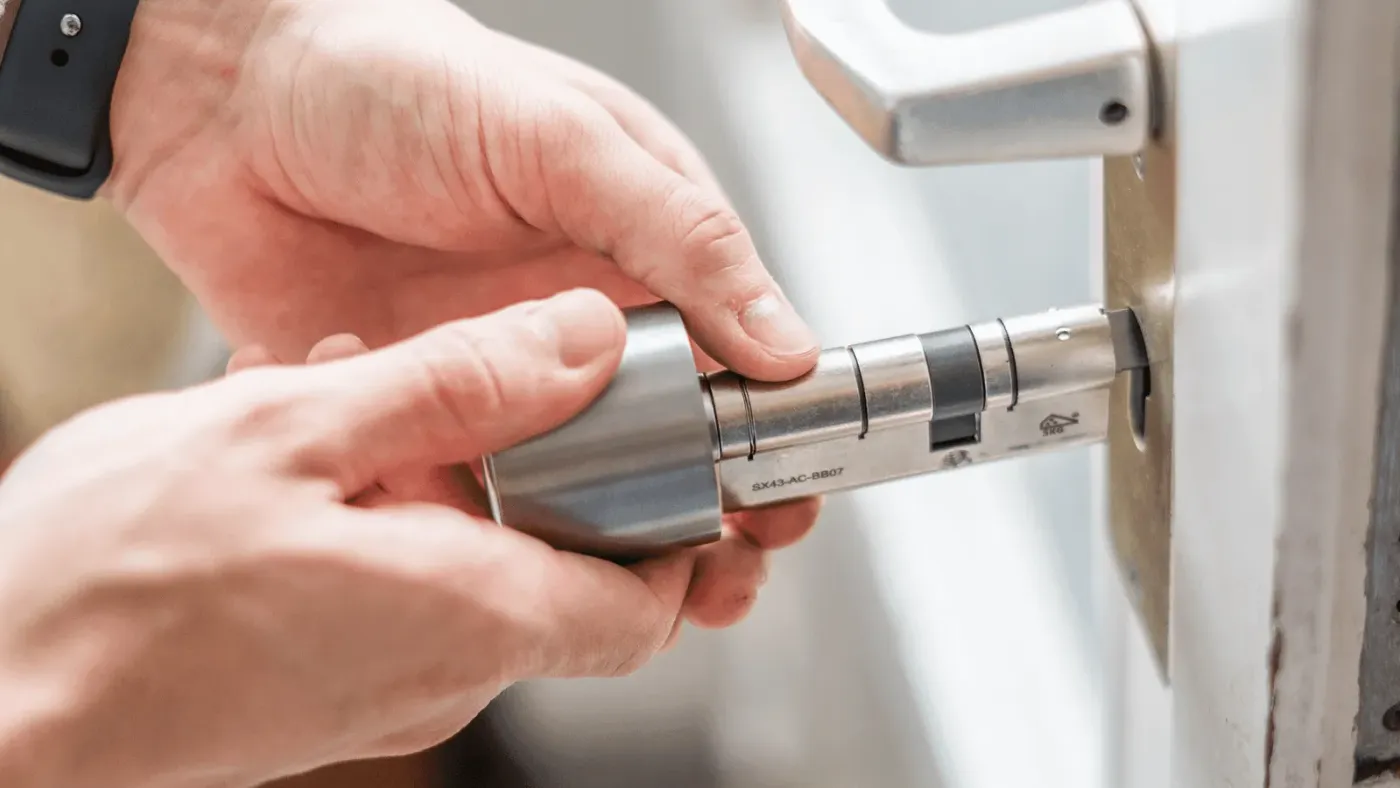
6. Remove the outside knob Use the included wrench to detach the outside knob. 7. Remove your existing cylinder Unscrew and take out your old door cylinder. 8. Extend if needed If your door requires it, use one of the provided adapters to extend the lock on the outside. 9. Install the Bold Insert the Bold into the door with the large knob on the inside. Gently tighten the cylinder locking bolt with a screwdriver, no need to overtighten. 10. Reattach the outside knob Fit the small outside knob back onto the Bold and tighten.
You’re all set
That’s it, your Bold is ready to use. You’ve officially upgraded to a smarter, more secure way of living. Want to avoid common smart lock installation mistakes? Visit our Support Centre for step-by-step help and more features like sharing access, Auto Entry, or backup PINs.